![paiger-logo-white (1).png]](https://help.paiger.co/hs-fs/hubfs/paiger-logo-white%20(1).png?height=40&name=paiger-logo-white%20(1).png)
Estimated complete time: 30-45 mins
Before you get started with your set up, there will be a couple of things that you will need to do.
- Instruct Paiger to execute the initial integration. Our team will need to integrate your Bullhorn instance with Paiger. To do this, you will need to share with them your Bullhorn Client ID and Secret
- Admin Account: In order to complete the following steps, you will need to be an admin on your company’s Bullhorn account or have enhanced user permissions. The setup requires access to the "Admin" section and "View Layout" options, which are not available to a standard user
- Install the Paiger Chrome Extension: The Paiger Google Chrome Extension must be installed by all users who will be using Paiger’s Bullhorn integration. This extension is required to ensure users have full Paiger functionality.
- Paiger Account and Licences: In order to utilise the Paiger functionality within your Bullhorn account, Bullhorn users will require a Paiger account. Users without a Paiger account will see the tabs in their view, but will not be able to access them.
- Log in to Bullhorn through your Paiger account: The first time someone logs in to Paiger in Bullhorn, they will need to do so through Paiger. To do this; Click on your name in the top right > Integrations > Bullhorn. You will then be taken into Bullhorn to complete your integration.
With these steps completed, you are ready to start adding the required tabs to your candidate, company, contact and job entity.
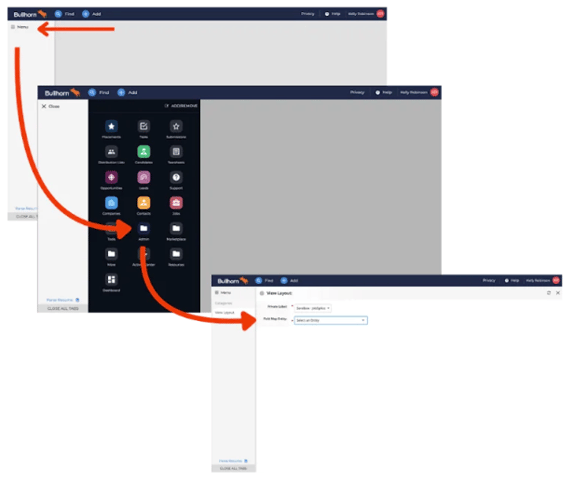
Upon logging in go to Menu > Admin > View Layout. From the dropdown, find the entity that you wish to add Paiger to.
Adding Paiger to your Candidate Entity
Estimated complete time: 10 minutesAdding the Paiger Tabs
Adding Paiger to your Company Entity
Estimated complete time: 10 minutes
Adding the Paiger Tabs
Adding Paiger to your Contact Entity
Estimated complete time: 10 minutes
Adding the Paiger Tab
Adding Paiger to your Job Entity
Estimated complete time: 10 minutes
Candidate
Company
Contact
Job
Troubleshooting
If after testing you find that the user you tested with is not able to use the Paiger tabs we suggest the following actions:
- Check the user you are testing with has a Paiger licence. Only users with a Paiger licence allocated to them will be able to access the Paiger tabs.
- Check that the user you are testing with is in one of the allocated user groups that you added when setting up the tabs.
If, having checked the above, you are still experiencing issues please reach out to Paiger support who will be more than happy to guide you through your problem - support@paiger.co