![paiger-logo-white (1).png]](https://help.paiger.co/hs-fs/hubfs/paiger-logo-white%20(1).png?height=40&name=paiger-logo-white%20(1).png)
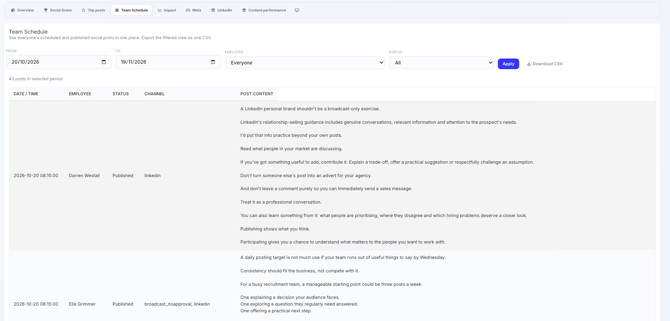
Team Schedule gives administrators one list of employees’ scheduled, pending and published social posts.
Find it in Paiger: Reports > Team Schedule
View your team’s posts-
Select the From and To dates you want to review.
-
Choose a specific Employee, or leave Everyone selected for the full team.
-
Select a Status: All, Scheduled, Published or Pending approval.
-
Select Apply to load the matching posts.
Team Schedule is a reporting view. Use the normal posting or scheduling tools to edit or reschedule content.
-
Each row includes the date and time, the employee, the current status, the social channel and the post content.
-
The total above the table shows how many posts match the filters.
-
If there are no matches, try a wider date range or change the employee or status.
A scheduled post is not yet a published post. Use the Status filter when you need to distinguish planned activity from completed publishing.
-
Set the dates, employee and status you require.
-
Select Download CSV. The download uses the filters in the form.
-
Open the file in your spreadsheet software to review activity, coordinate your team or keep a record of planned and published posts.