![paiger-logo-white (1).png]](https://help.paiger.co/hs-fs/hubfs/paiger-logo-white%20(1).png?height=40&name=paiger-logo-white%20(1).png)
Social Score helps you understand how employees, departments and locations contribute to your organisation’s social activity and engagement.
Find it in Paiger: Reports > Social Score
How to view and explore your score-
Open Reports > Social Score and set the reporting period in the report date controls.
-
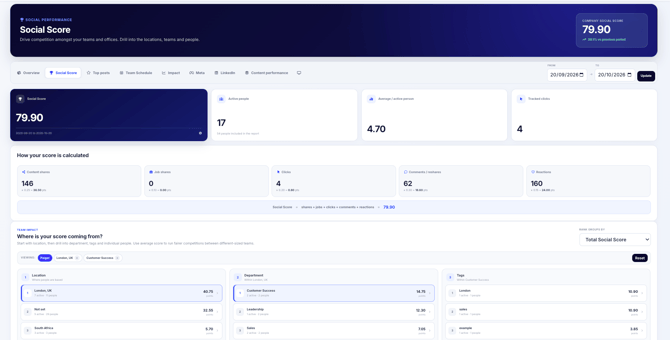
Review the company Social Score, number of active people, average score per active person and tracked clicks.
-
Under “Where is your score coming from?”, select a location, then explore departments and user tags to narrow the view.
-
Change “Rank groups by” between Total Social Score and Average / active person. Average score is helpful when comparing differently sized teams.
-
Select an individual in “People driving the score” to view the posts and activity contributing to their score. Use Reset to return to the wider view.
Locations, departments and tags are taken from people’s current Paiger profiles. If someone changed teams, the report cannot perfectly recreate historical team membership.
How the score is calculated
-
Paiger combines weighted activity from content shares, job shares, tracked clicks, comments or reshares, and reactions.
-
The report shows the weighting and points for each component. The overall score is the sum of those weighted points, and it is not capped at 100.
-
The Change column and company comparison show how the score has moved against the previous comparable period.
A score is an engagement indicator, not a measurement of leads won, placements or sales.
Ways to use Social Score
-
Run a friendly competition between offices or departments using Average / active person.
-
Identify posts that encourage clicks and conversations, then share examples with the wider team.
-
Recognise consistent participation as well as high-scoring individuals.
Employees can have more than one user tag. Tag totals may overlap and do not necessarily add up to the company total.