![paiger-logo-white (1).png]](https://help.paiger.co/hs-fs/hubfs/paiger-logo-white%20(1).png?height=40&name=paiger-logo-white%20(1).png)
The LinkedIn report shows how a connected Company Page is growing, how its posts are performing and who is engaging with the page.
Find it in Paiger: Reports > LinkedIn
How to run the report-
Open Reports > LinkedIn.
-
Use the Company Page selector if more than one page is available.
-
Choose the From and To dates and select Update.
-
Review the headline metrics, the daily trend charts and the Top Company Page posts.
-
Use the follower and visitor breakdowns to understand which roles, seniority levels and company sizes make up the audience.
LinkedIn limits some audience demographic data and applies privacy thresholds. Missing breakdowns may reflect LinkedIn’s restrictions rather than an error.
-
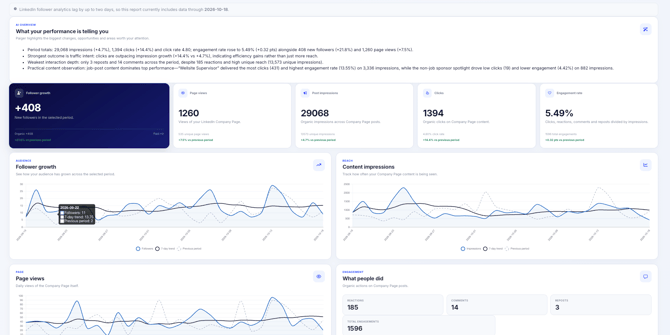
Follower growth: new followers during the selected period, with an organic/paid breakdown where LinkedIn provides it.
-
Page views: visits to the Company Page, with unique views displayed separately.
-
Post impressions: organic views of Company Page posts; unique impressions may also be shown.
-
Clicks: organic clicks on Company Page content.
-
Engagement rate: organic clicks, reactions, comments and reposts divided by impressions.
-
Top Company Page posts: up to ten posts ranked by organic impressions, with their interactions and engagement rates.
LinkedIn follower analytics can be delayed by up to two days. The report will indicate the latest data date when this applies.
-
Compare the posts generating impressions with those generating meaningful clicks and conversations.
-
Review follower growth and visitor demographics to see whether the page is reaching the people you want to attract.
-
Use the changes against the previous period to judge momentum rather than relying on a single week.
If a metric cannot be retrieved, Paiger may show a warning or partial results. Reported Company Page analytics are not the same as analytics for employees’ personal LinkedIn posts.