![paiger-logo-white (1).png]](https://help.paiger.co/hs-fs/hubfs/paiger-logo-white%20(1).png?height=40&name=paiger-logo-white%20(1).png)
Use it when you’re starting a new desk, exploring a new sector or looking for companies beyond the names you already know. You can review each employer, check their vacancies and open company research directly from your map.
Market Mapping is part of Paiger Intelligence. Each batch of company discovery uses 1 Intelligence credit, including batches requested using Find more companies.
If the feature is locked, contact your account manager about enabling Paiger Intelligence.
1. Define your market
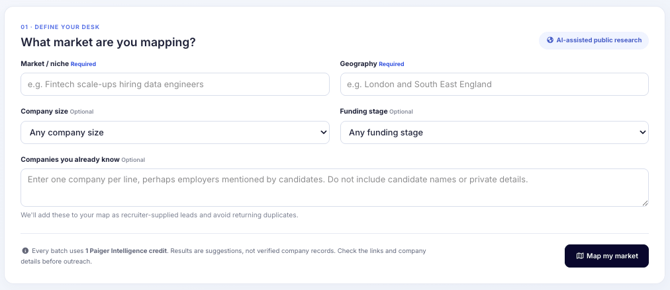
Open Market Intel, then select Map a Market.
Complete the following fields:
| Field | What to enter |
| Market / niche | The type of employers you want to find, such as “Fintech companies” or “Medical device manufacturers”. |
| Geography | Your target location. Include the country where helpful, such as “Cambridge, UK”. |
| Company size | Optionally narrow your search by employee count. |
| Funding stage | Optionally choose a funding stage, such as Seed or Series A. Leave this as “Any” if it isn’t relevant to your desk. |
TIP: Start with a clear sector and location. If your search is too narrow, broaden the geography or remove the company size and funding stage filters.
Use Companies you already know to enter existing employer names, one per line.
These could include businesses mentioned during candidate conversations or companies you’ve already identified through your own research. Enter company names only, without candidate names or private details.
Paiger adds these to your map as Added by recruiter and uses them to help avoid duplicate suggestions. They are starting points for your research; their company details aren’t automatically filled in by adding their names.
2. Build your map
Select Map my market.
Paiger uses AI-assisted public web research to discover employers matching your criteria. It aims to find around 30 companies per batch, but may return fewer if there aren’t enough suitable matches.
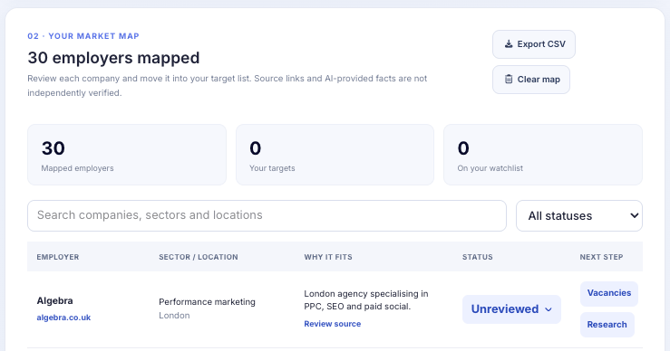
For discovered companies, your map can include:
- Company name and website.
- Sector and location.
- Funding stage, where available.
- A short explanation of why the company fits.
- A Review source link.
Results are research suggestions. Check the source links and company details before using them in your outreach. Appearing in your map does not necessarily mean a company is currently hiring.
3. Review and prioritise employers
Use the status dropdown beside each company to organise your list:
| Status | Suggested use |
| Unreviewed | You haven’t assessed the company yet. |
| Target | A relevant employer you want to pursue. |
| Watch | A company you want to revisit later. This is an organisational status; selecting it does not set up an automatic alert. |
| Not a fit | An employer that isn’t suitable for your desk. |
Use the search box to find companies, sectors or locations within your map. You can also filter by status to focus on your targets or review outstanding companies.
4. Explore vacancies and company research
Each employer has two next-step options:
- Vacancies: Opens a company-specific vacancy search so you can check the roles available in Paiger.
- Research: Opens company research with the employer’s name and, where available, website domain passed through.
Both open in a modal, allowing you to return to your map after reviewing the company.
A useful workflow is to check the source, explore vacancies, review the company and then decide whether to mark it as a Target.
5. Find more companies
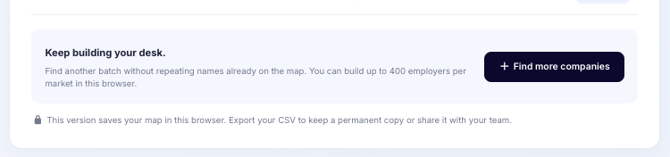
Select Find more companies to expand your map using the current search criteria.
Paiger excludes names already on your map and checks incoming results for duplicate names and website domains.
You can build a map of up to 400 employers.
Each additional batch uses 1 Intelligence credit.
6. Export and keep your map
Select Export CSV to download your company list, including its available details, source links and review statuses.
The export includes the whole map, even if you have a search or status filter applied.
You can filter the downloaded file in your spreadsheet software.
Your map is saved in the browser you’re using. It does not automatically sync across devices, browsers or teammates. Export a CSV to keep a permanent copy or share your list with colleagues.
To remove the current map, select Clear map and confirm. Export it first if you need to keep a copy.
Frequently asked questions
Why did my search return fewer companies than expected?
Your criteria may be too specific, or there may be limited public information available. Try a broader niche or location, or remove optional filters.
Does a company appearing in my map mean it is hiring?
No. Market Mapping discovers relevant employers. Use Vacancies to check the jobs available in Paiger and Research to investigate further.
Why are some company details missing?
Some information may not be available from public sources. Companies you enter yourself also start with limited details. Use the company website, source links and Research to investigate.
Where has my saved map gone?
Check that you’re using the same browser, Paiger account and search criteria. Clearing browser data or using private browsing can affect saved maps. Keep a CSV export of any list you want to retain.